Description:
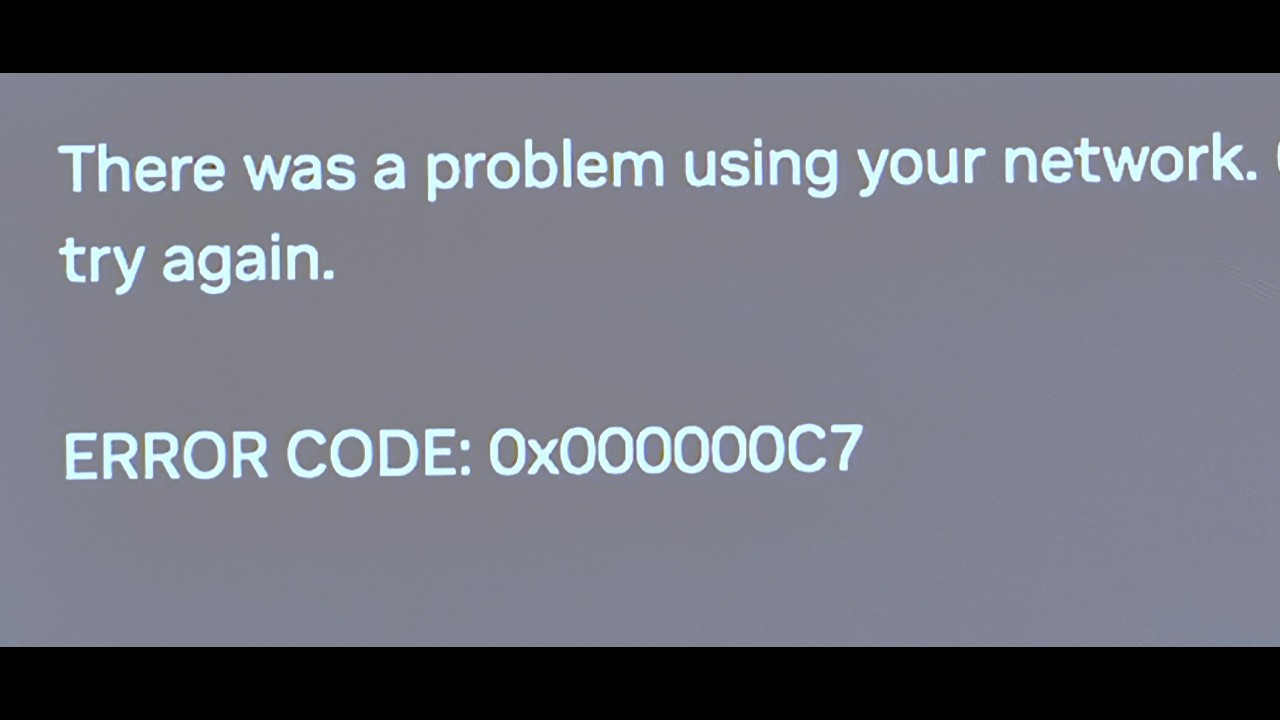
How To Fix App/Games Not Installing Microsoft Store Error Code 0x80073CF6 Something Unexpected Happened On PC
Step 1) Make Sure Date and Time, time zone, region are correct
Step 2) Clear store cache Using wsreset command
Step 3) Repair/Reset Store app
Step 4) Delete Microsoft Store Local Cache Files
C:\Users\Username\AppData\Local\Packages\Microsoft.WindowsStore_8wekyb3d8bbwe
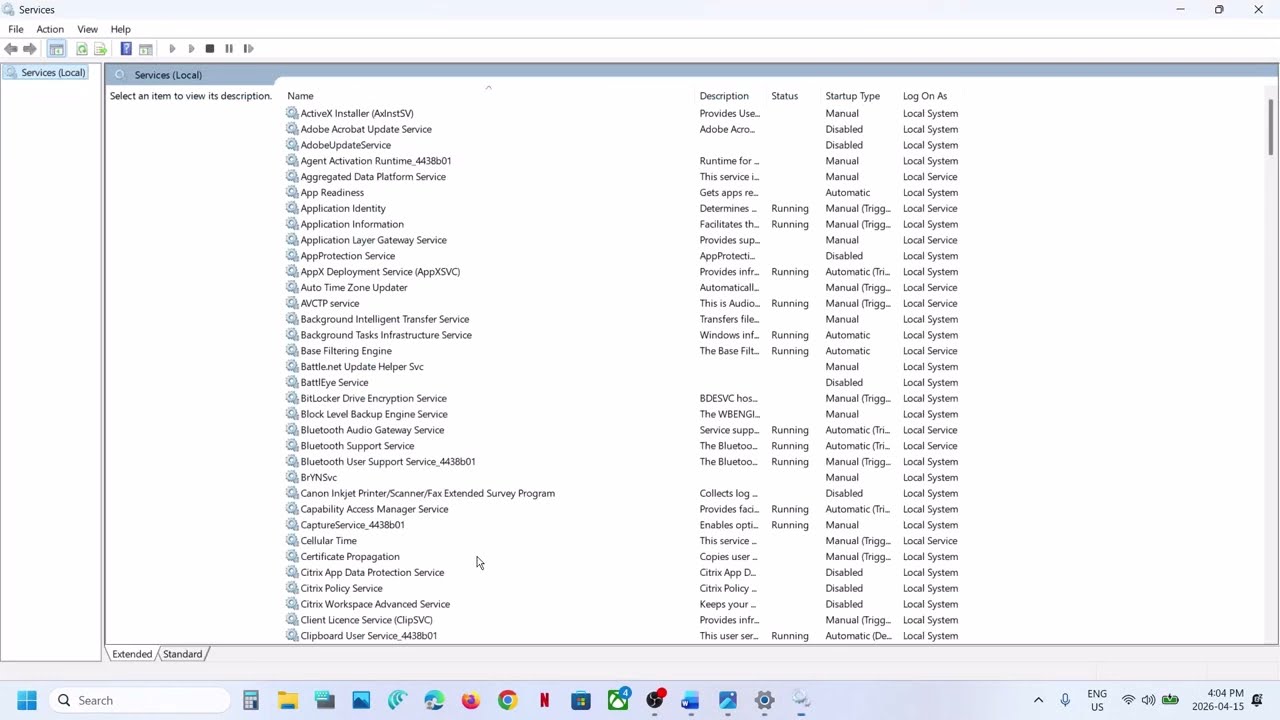
Step 5) Start/Restart Windows Update, Microsoft Store Install service and background intelligent service
Step 6) Run this Powershell command
Get-AppxPackage -AllUsers| Foreach {Add-AppxPackage -DisableDevelopmentMode -Register “$($_.InstallLocation)\AppXManifest.xml”}
Step 7) Run these commands
ipconfig /flushdns
ipconfig /release
ipconfig /renew
netsh winsock reset
netsh int ip reset
Step 8) Switch to different network, use Mobile hotspot
Step 9) Try installing game/app from my library
Step 10) Uninstall & Reinstall Store
Get-AppxPackage -allusers *WindowsStore* | Remove-AppxPackage
Get-AppxPackage -allusers *WindowsStore* | Foreach {Add-AppxPackage -DisableDevelopmentMode -Register “$($_.InstallLocation)\AppXManifest.xml”}
Step 11) Run DISM Command
sfc /scannow
Dism /Online /Cleanup-Image /RestoreHealth
Step 12) Run inetcpl.cpl command
In Advanced Tab
Check Use TLS 1.0, 1.1, 1.2 and 1.3
Step 13) Update Windows 11
Step 14) If trying to install any games, Use Xbox App (Login with same account on Xbox App & Microsoft Store) https://www.xbox.com/en-US/apps/xbox-app-for-pc
Run Gaming Services Repair Tool
Step 15) Install Xbox identity provider and Gaming services
https://www.microsoft.com/en-us/p/xbox-identity-provider/9wzdncrd1hkw?rtc=1&activetab=pivot:overviewtab
Uninstall remains of gaming service
get-appxpackage Microsoft.GamingServices | remove-AppxPackage -allusers
Install Gaming service:
start ms-windows-store://pdp/?productid=9MWPM2CQNLHN
Step 16) Start all these services
IP Helper
Xbox Live Auth Manager
Xbox Live Game Save
Xbox Live Networking Service
Gaming services
Windows Update
Microsoft install service
Step 17) Use option “Fix Problems Using Windows Update”
Step 18) Update Windows to the latest version using media creation tool
https://www.microsoft.com/en-in/software-download/windows11
https://www.microsoft.com/en-in/software-download/windows10
Step 19) Reset Windows 11 (Create a backup first as it may result in data loss)












Share this link via
Or copy link